Overview
Licensing
This page explains licensing from the end user's perspective: what is needed, how to obtain the license, and how to apply it.
How to obtain a license
Review plans, included features per tier (Developer / Professional / Software House) and purchase on the public site:
- WUIC pricing and plans — wuic-framework.com/pricing
- Contact sales — no license is needed to evaluate: without one the framework runs in Trial mode (20 records per query)
- WUIC homepage
After purchase you will receive an email with license-payload + license-signature to install as described in the "End User Procedure" below.
How It Works
- The license is valid only if:
- correct signature.
machineFingerprintof the current server is present in themachineFingerprintslist of the signed payload.- the license has not expired (
expiryUtc). A license that expires while the server is running stops being valid within 5 minutes (the validation is cached for that long), with no restart needed. - maintenance: the installed version is not newer than the end of maintenance (
maintenanceExpiryUtc). If the build is later, the license is not valid (maintenance_expired), even if it has not expired. - If the license is not valid, data reading (
getFlatRecordData) is limited to a maximum of 20 records. Additionally, the host hookcustomizeSelectis bypassed (not invoked).
Where to Find the machineFingerprint
Backend endpoint:
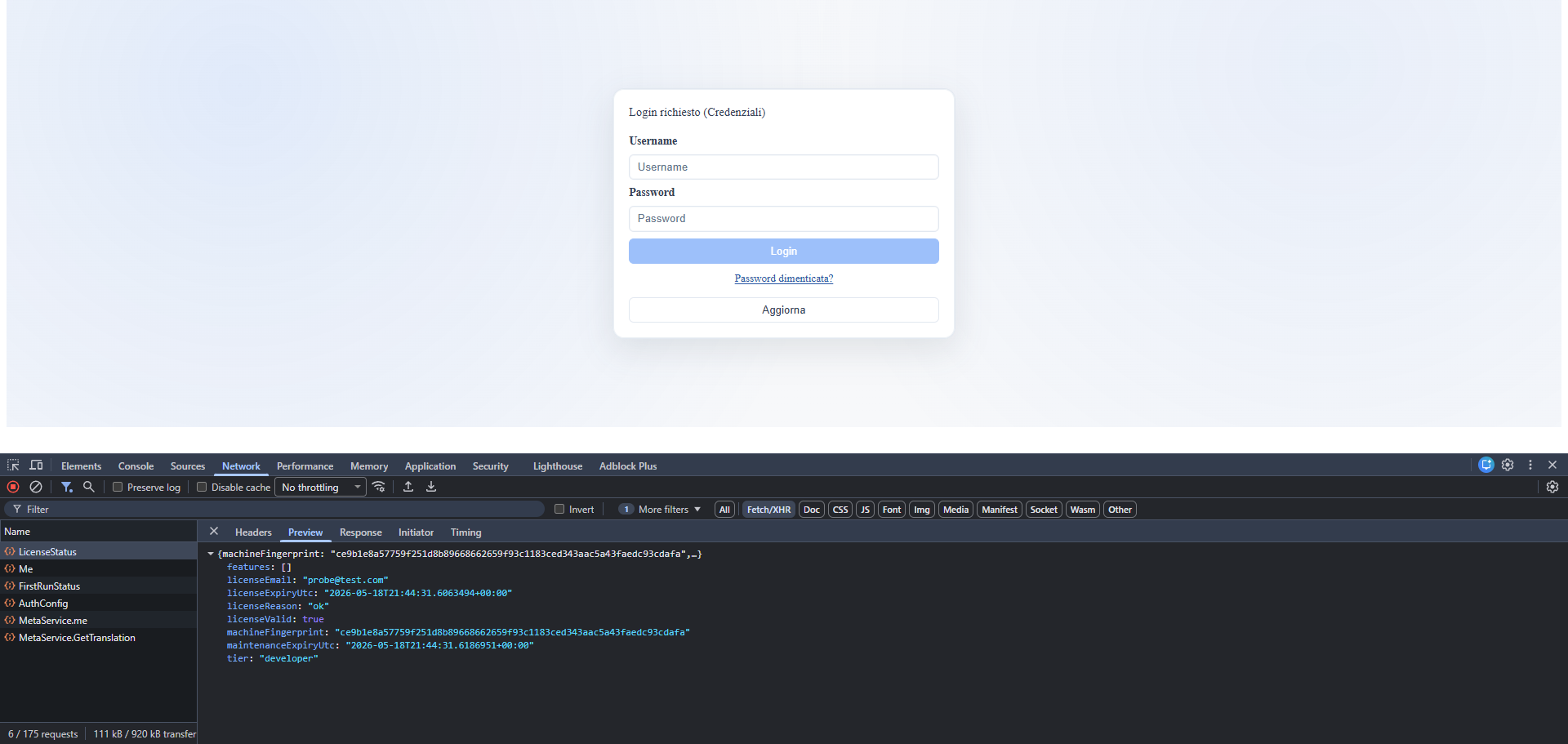
GET /api/Meta/LicenseStatus→ fieldmachineFingerprint(always available, even without a license).- During the first run it is also exposed by
GET /api/Meta/FirstRunStatus. - Hosts whose identity changes at every start (e.g. containers with a regenerated machine-id): pin the fingerprint with the
WUIC_LICENSE_MACHINE_FINGERPRINTenvironment variable, set on the host. There is no appsettings equivalent: whoever can edit the configuration from the application must not be able to make the server look like another machine.
Note: the local file installation.id is no longer used by licensing.
End User Procedure
1. Retrieve machineFingerprint from your host.
2. Send the value to the vendor/licensor.
3. Receive the license values:
license-payloadlicense-signature
4. Paste the values from the UI: Administration > AppSettings Editor, License section
(fields License email, License payload, License signature), then save.
The public key that verifies the signature is built into the framework and is not configurable
(the editor no longer has a Public key (PEM) field, and license-public-key-pem in appsettings is ignored). Alternatively you can write them by hand in the AppSettings section of the running
host's appsettings.{Environment}.json.
The AppSettings editor requires a session with the superadmin role, checked server-side.
5. Verify the license status:
- from the API:
GET /api/Meta/LicenseStatus, expectedlicenseValid = true; - or from the page itself, which re-reads the license right after saving.
No backend restart is needed when you go through the editor. Saving license-payload /
license-signature from the AppSettings Editor makes the backend refresh the validation
service on its own, and the license applies from the next request. A restart is only needed in
the other case, when the values are written by hand in the file: that one is read at startup.
Multi-Machine License
A single license can authorize multiple machines by including multiple values in machineFingerprints.
Quick Troubleshooting
licenseReason = invalid_signature:- payload/signature are not consistent with each other (copied incompletely or modified) or were signed with a key other than the vendor's.
licenseReason = machine_fingerprint_not_authorized:- the current machine's fingerprint is not present in the received license.
licenseReason = machine_fingerprint_missing:- the runtime cannot calculate the local fingerprint.
licenseReason = license_expired:- the license has expired, request renewal.
licenseReason = maintenance_expired:- maintenance ended before the build date of the installed version: install a version released before the end of maintenance or renew maintenance.
Screenshot